

Documents and tax returns
Send your tax documents
See what we still need for your return and upload it from your phone or computer.
Step 1: Open the Documents tab
When we need documents, each return is listed under Waiting on you, with how many are left.
When nothing is needed you see All caught up.
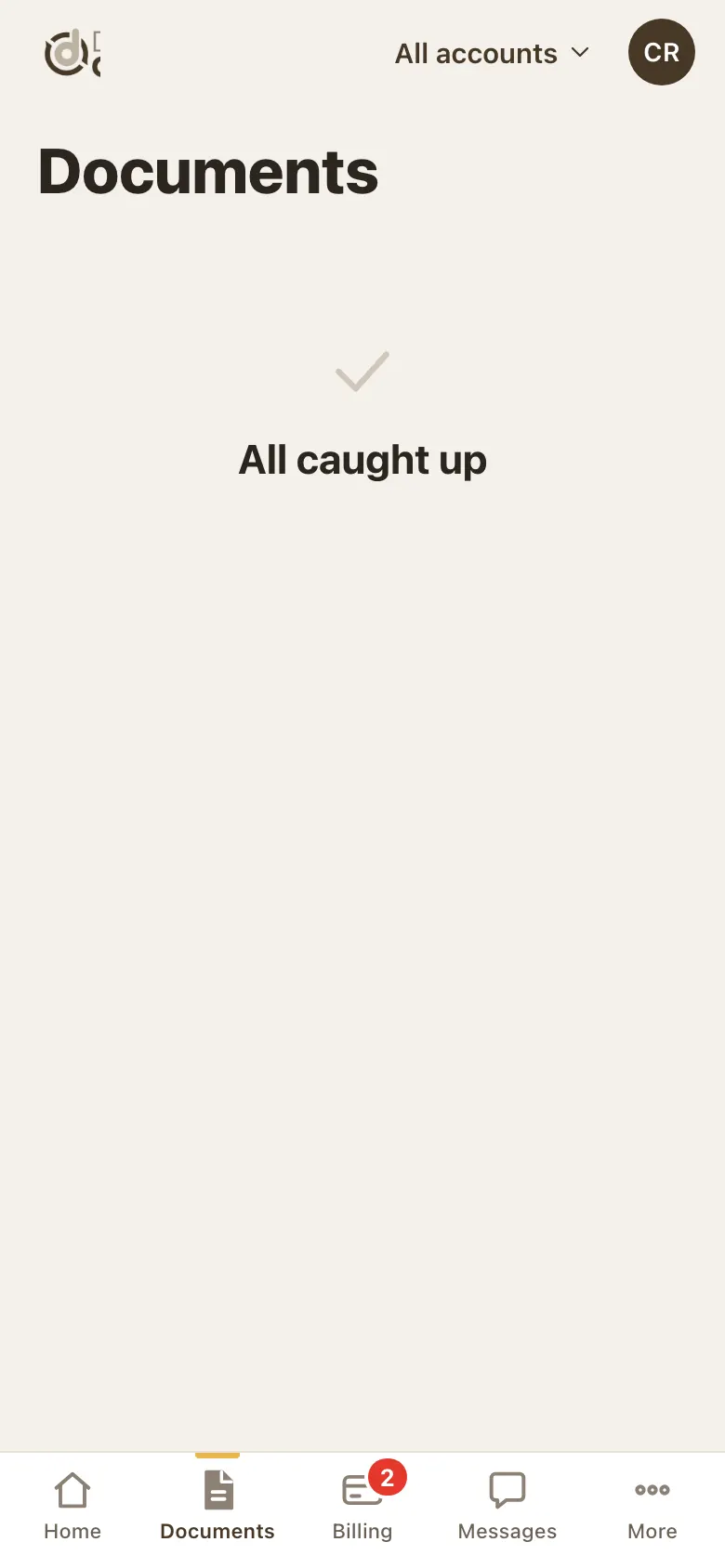
Documents when nothing is needed: All caught up. Step 2: Open the return's checklist
Tap the return. You can also tap Tax docs on Home, or Upload documents on the return's page.
The checklist shows each document we asked for.
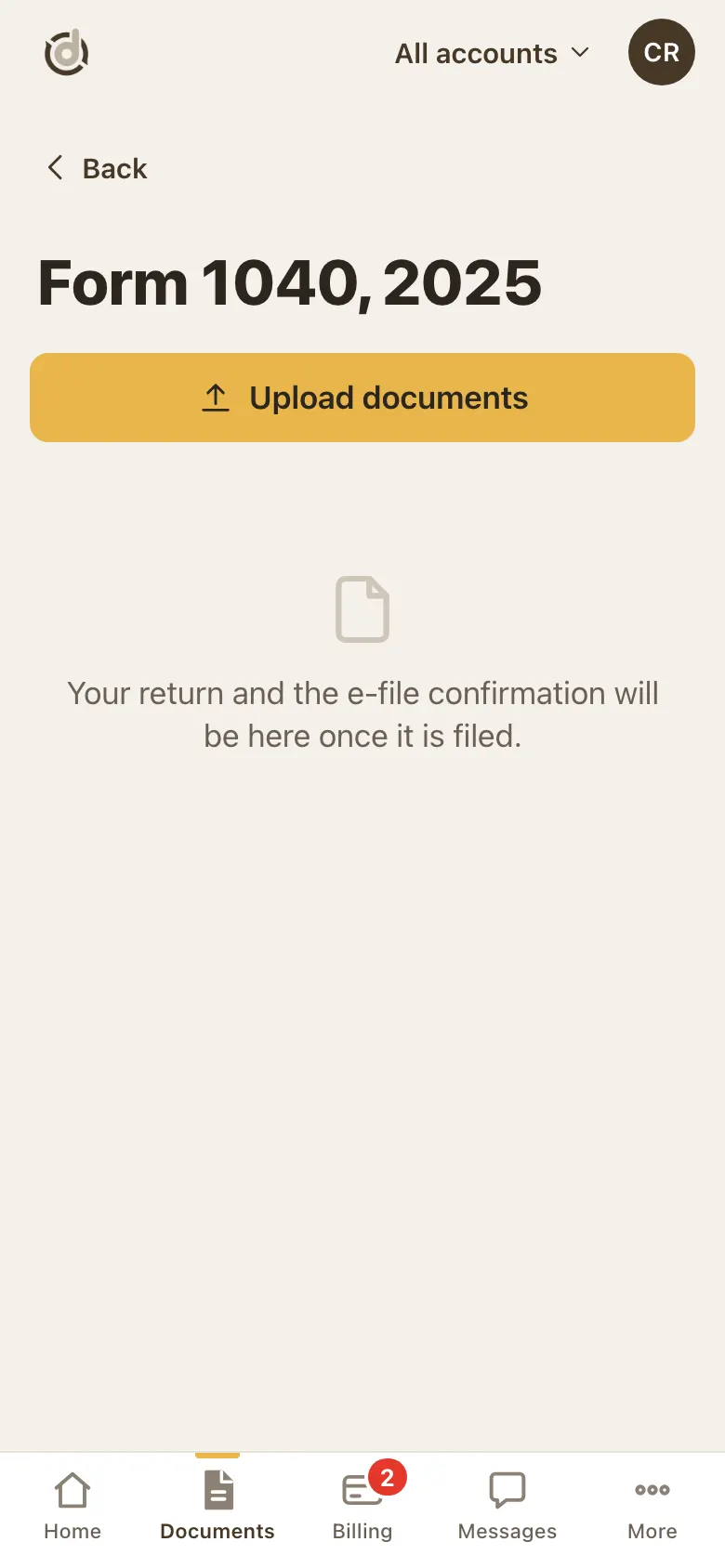
Upload documents on a tax return page. Step 3: Add your files
Tap the document you are sending and choose the file.
On a phone you can take a photo or pick one from your photos or files.
Step 4: Send and check
Send the files. The document shows as received.
Keep going until the list is done. The number on the Documents tab goes down as you go.
Good to know
- Photos work well: flat, in good light, with every page and every corner showing.
- A link in our email opens the same checklist, without signing in.
- Sent the wrong file? Call us and we will sort it out.
Screens show a sample account with made-up details.