

Billing and payments
See your payment history
Every payment you made, with its date and status.
Step 1: Open Billing, then Payments
The top card adds up what was paid and anything that was declined.
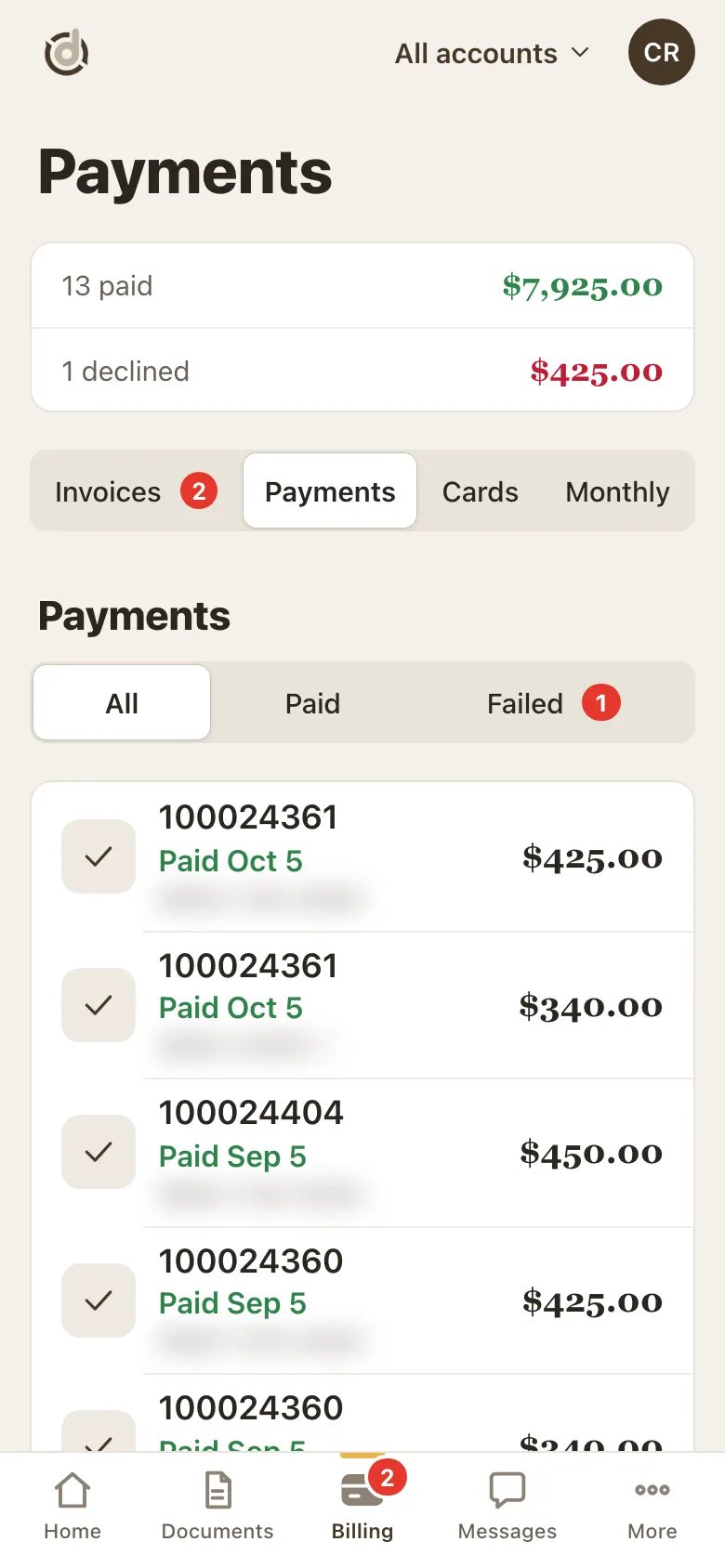
Payments: totals and every payment. (Reference numbers hidden in this sample.) Step 2: Filter the list
Tap All, Paid or Failed.
Step 3: Read each payment
Each row shows the invoice number, a status word with the date, and the amount.
Paid means it went through. Processing means it is still being confirmed. Declined means it was not charged.
Step 4: Payments on one invoice
Go to Billing, Invoices and tap the invoice number. Its page lists the payments made on it.
Good to know
- Your receipt comes by email after each payment.
- Charged, but the invoice still says due? Check Payments first. If it says Processing, give it a little time.
Screens show a sample account with made-up details.