

Send us a message and follow your requests
Write to your team from the portal, add files, and see where each request stands.
Step 1: Open the Messages tab
Your requests are listed under Open. Finished ones move to Done.
Each row shows the subject, a colored status word like We're on it, and the account it is about.
Use Search messages to find one by its words. The account list next to it shows only one household or business.
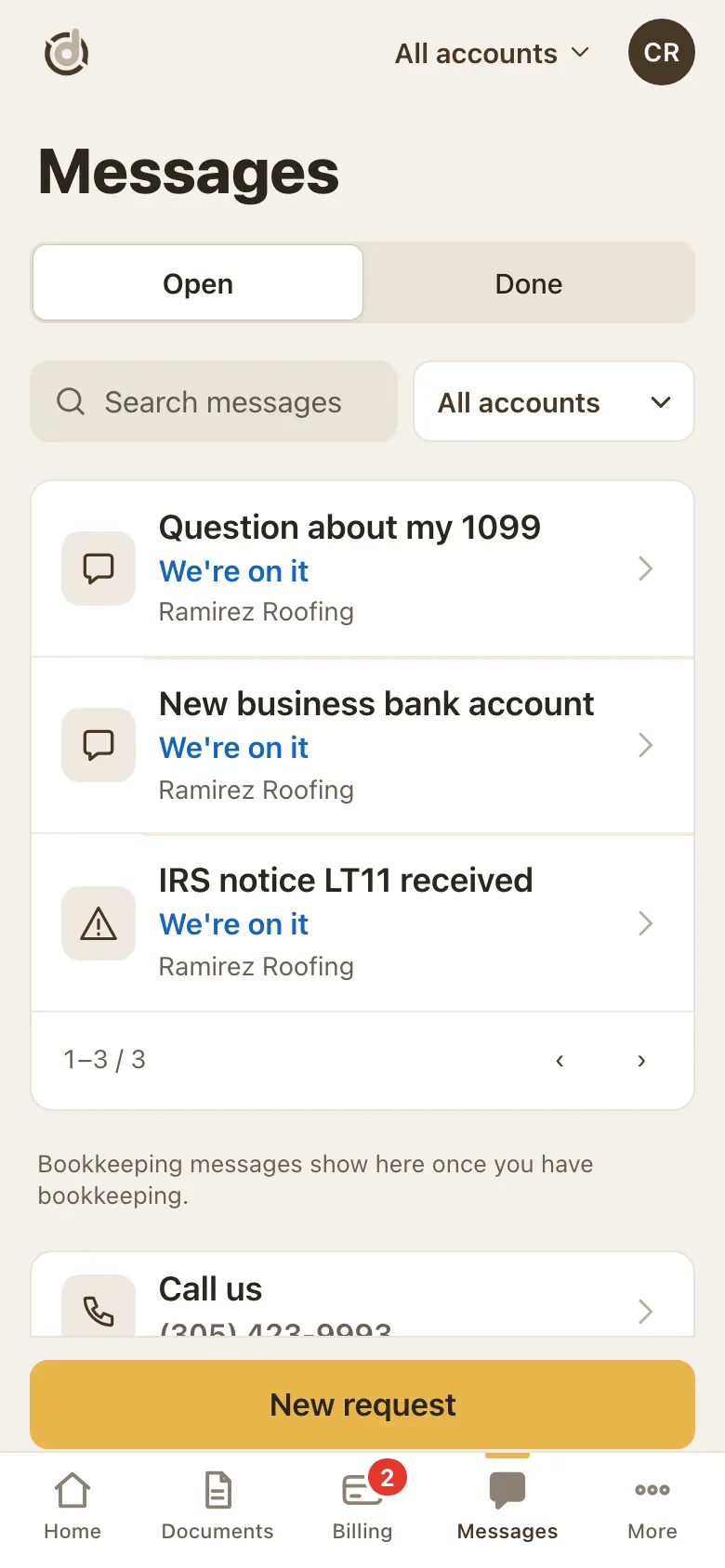
Messages: your requests, with search and an account filter. Step 2: Start a new request
Tap the gold New request button at the bottom.
Account: pick the household or business it is about.
Topic: tap Tax return, Payroll, Sales tax, Billing, Business filing or Something else.
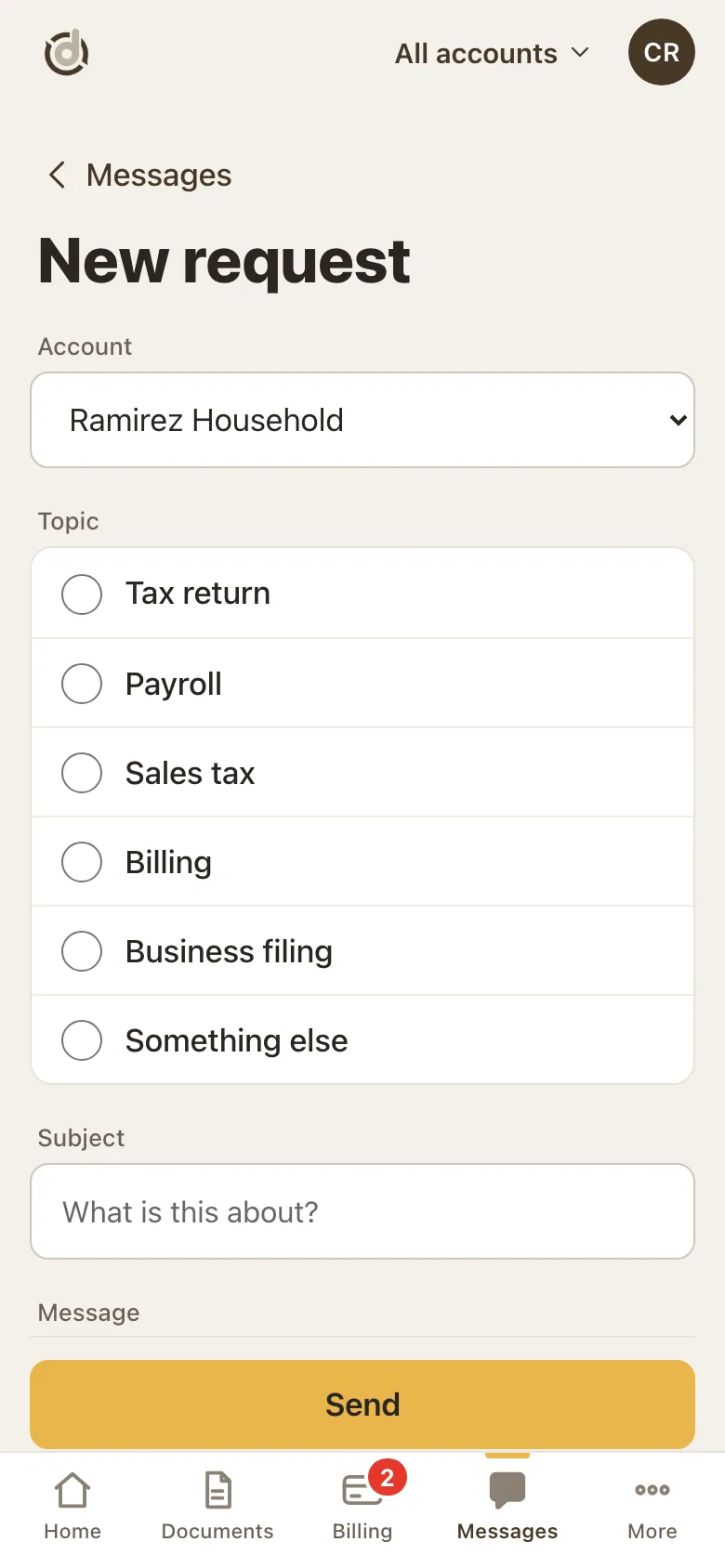
New request: pick the account and the topic. Step 3: Write it and add files
Type a short Subject, then your Message.
Under Files, tap Choose files, or Take a photo on a phone. PDF, photo, Word and Excel files work.
Files on a new request can be up to 1 MB in total. Bigger files? Send the message first, then add them in your replies, or email them to client@dedicatedcpa.com.
Tap Send. You see Sent right away, and the request shows in your list a few seconds later.
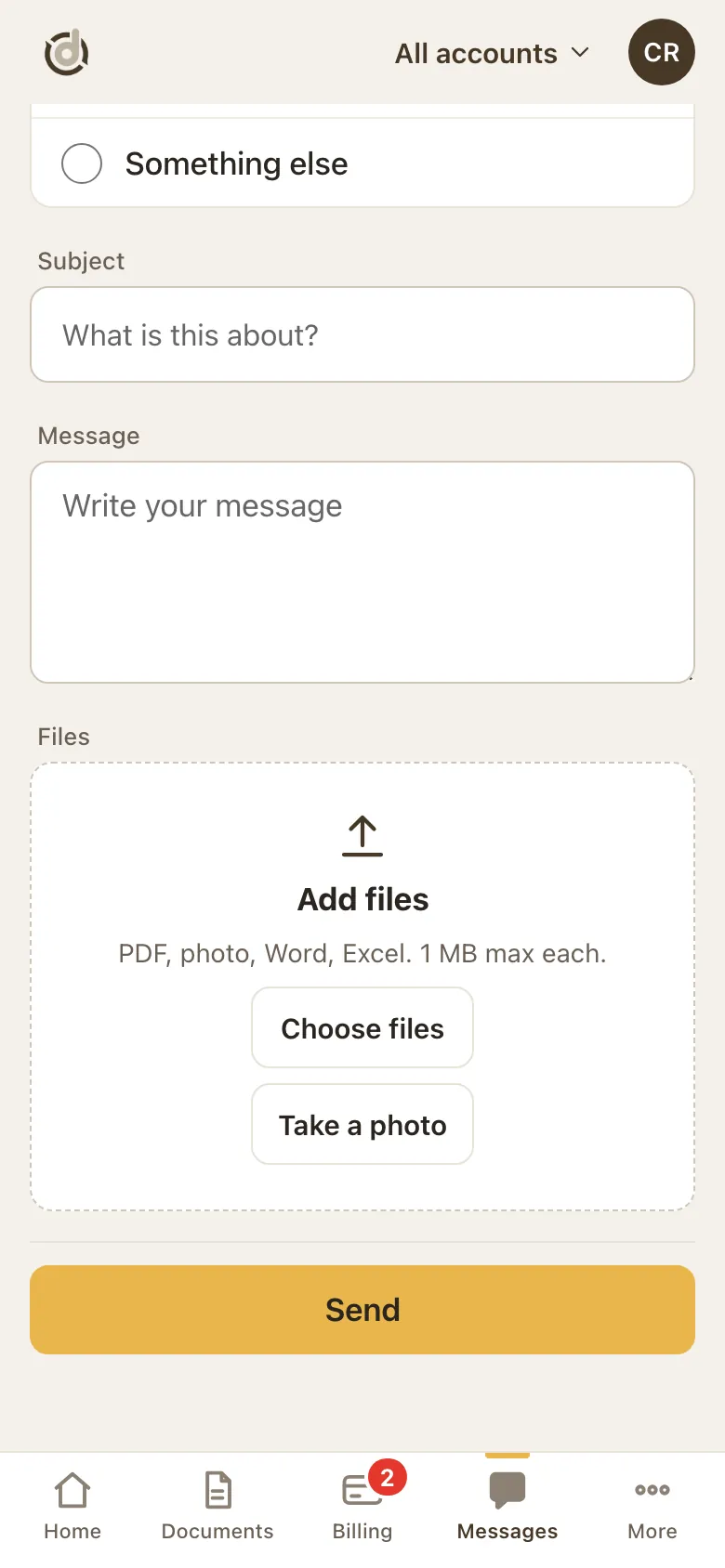
Subject, message, files, then Send. Step 4: Open a request to see where it stands
Tap a request. The top shows its status, the account and the date it was opened.
Where it stands, What happens next and What we need from you tell you, in plain words, whose turn it is.
Below that is the conversation: your messages and our replies, newest at the bottom.
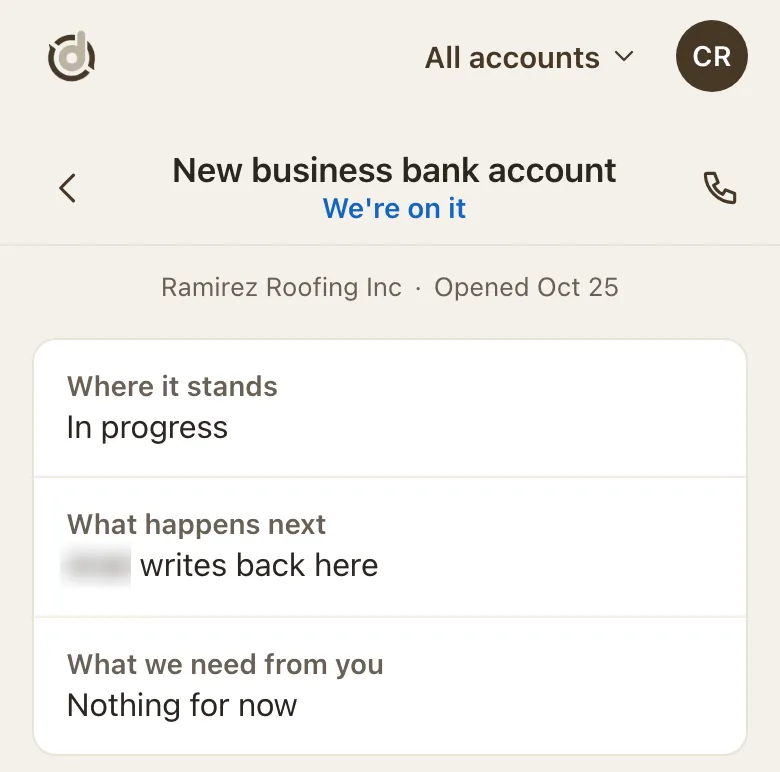
A request: status, what happens next, and what we need from you. (Names hidden in this sample.) Step 5: Reply, with files if you need
Type in Write your reply at the bottom and tap Send.
Tap the paperclip to add a file, or the camera to take a photo. A reply can carry up to 10 files, 1 MB each. They upload one at a time.
Files you sent from the portal are listed under Files, marked From you. Your team is listed below them, with a Call button.
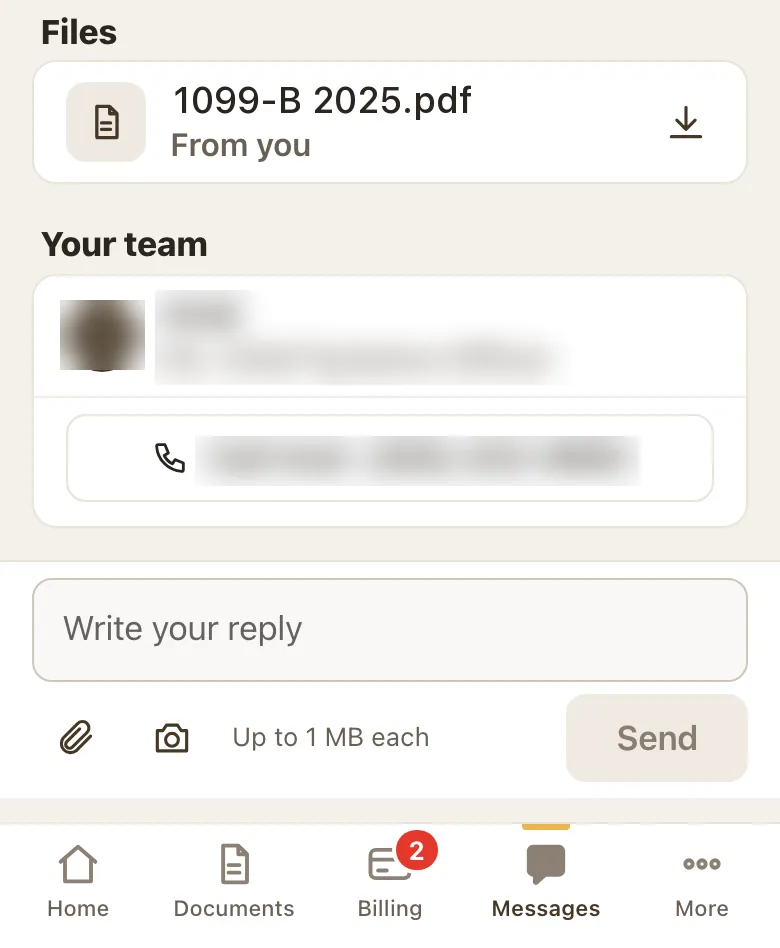
Files, Your team, and the reply box. (Names hidden in this sample.) Step 6: Other ways to open the same form
More, then Help, then Message.
More, then Contact us.
Both open the New request form.
Good to know
- Files our team attaches to an email reply are not listed in the portal yet. You get them in our email.
- A red number on the Messages tab counts the requests waiting on you.
- Need to add something to a request marked Done? Open it and reply. Your team gets it.
- Got an older email from us with a link to a case? It now opens that request in Messages.
- Files over 1 MB: upload them under Documents, or email them to client@dedicatedcpa.com.
- Something urgent? Call the office. The number is on the Help page.
Screens show a sample account with made-up details.