

Your profile and address
Check your details, and change your email, phone or household address.
Step 1: Open More, then Profile
Name and birthday shows your name, date of birth and tax ID.
Your tax ID shows only the last 4 digits.
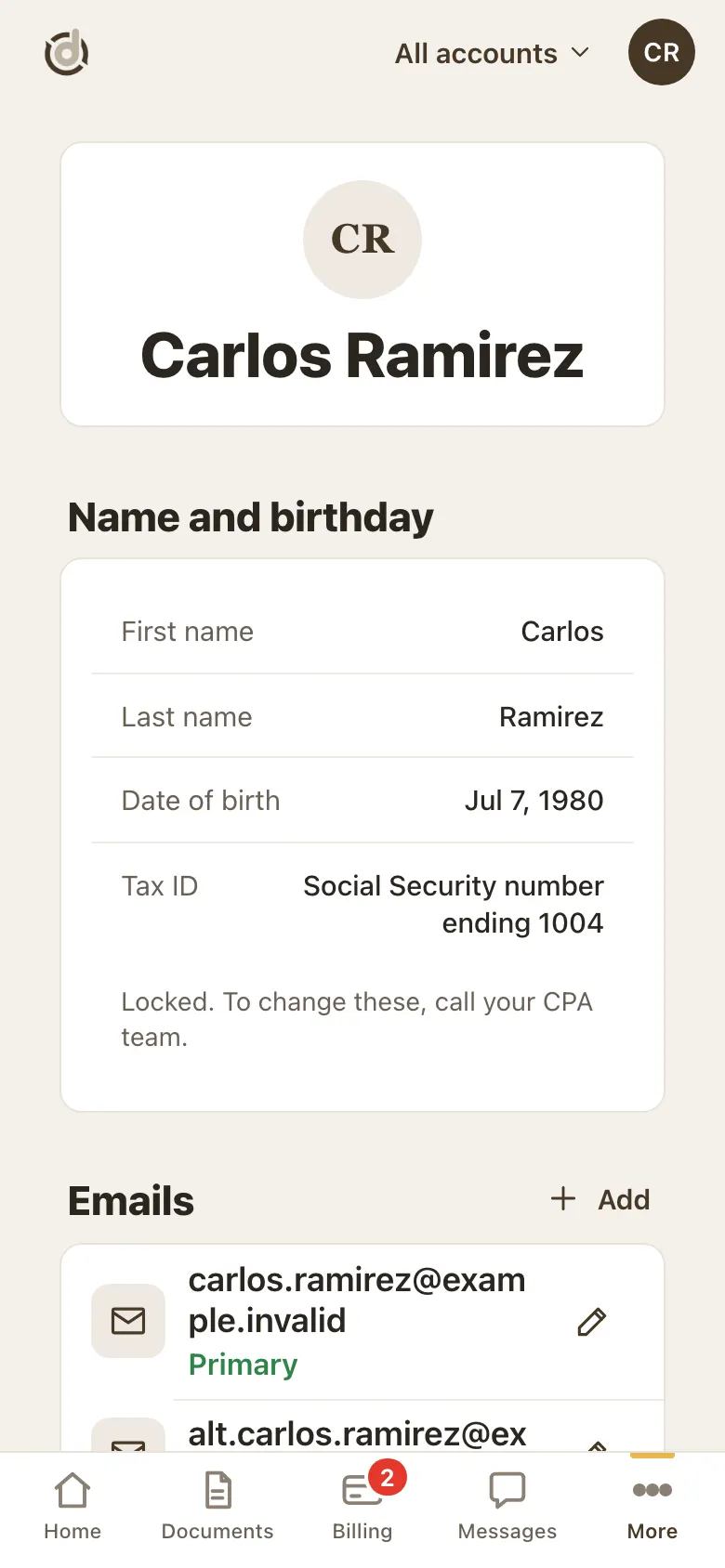
Profile: name, birthday and tax ID (last 4 digits only). Step 2: Change or add an email or phone
Tap the pencil next to an email or phone to change it. Tap + Add to add one.
Changing an email here never changes the email you sign in with.
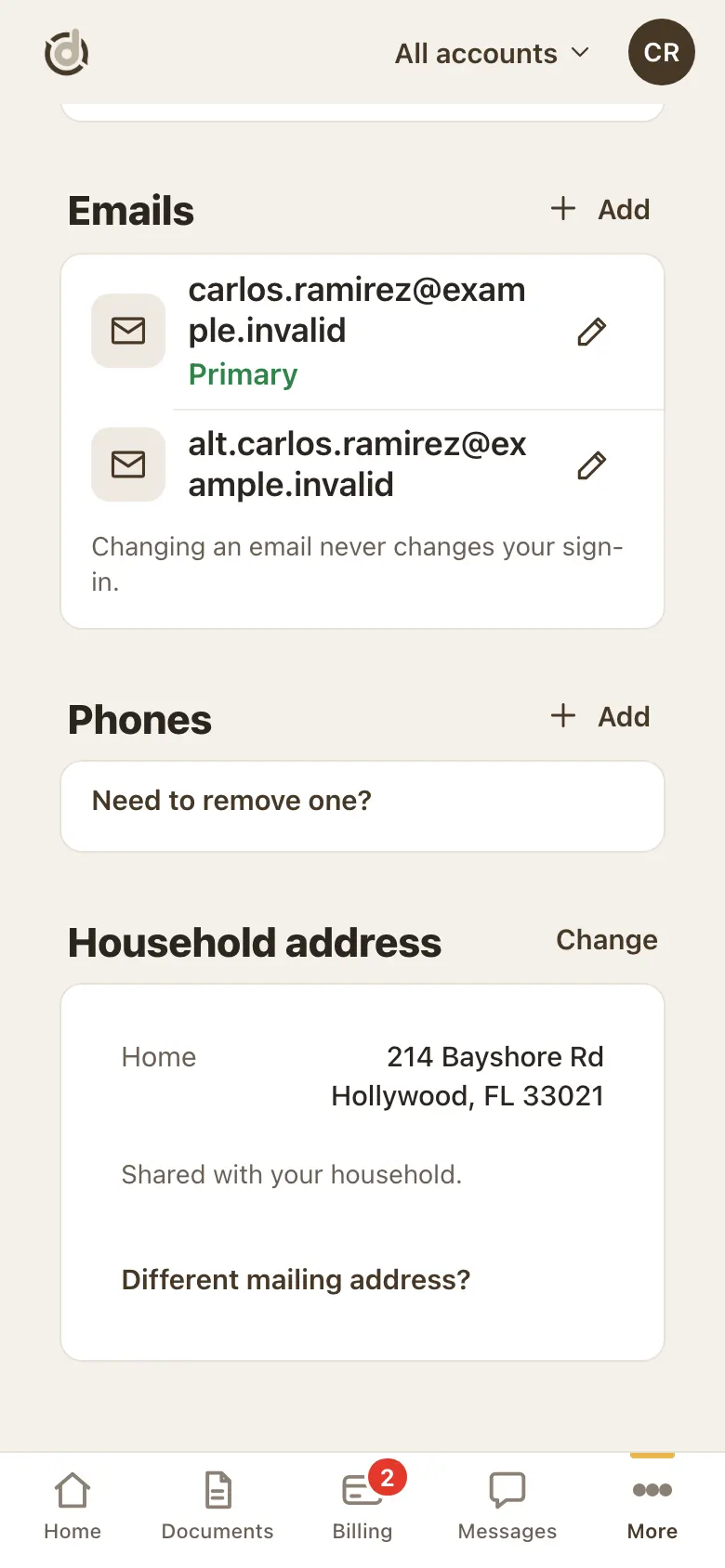
Emails, Phones and Household address. Step 3: Change your household address
Under Household address, tap Change.
Fill in street, city, state and ZIP, then tap Save address.
If your mail goes somewhere else, tap Different mailing address?
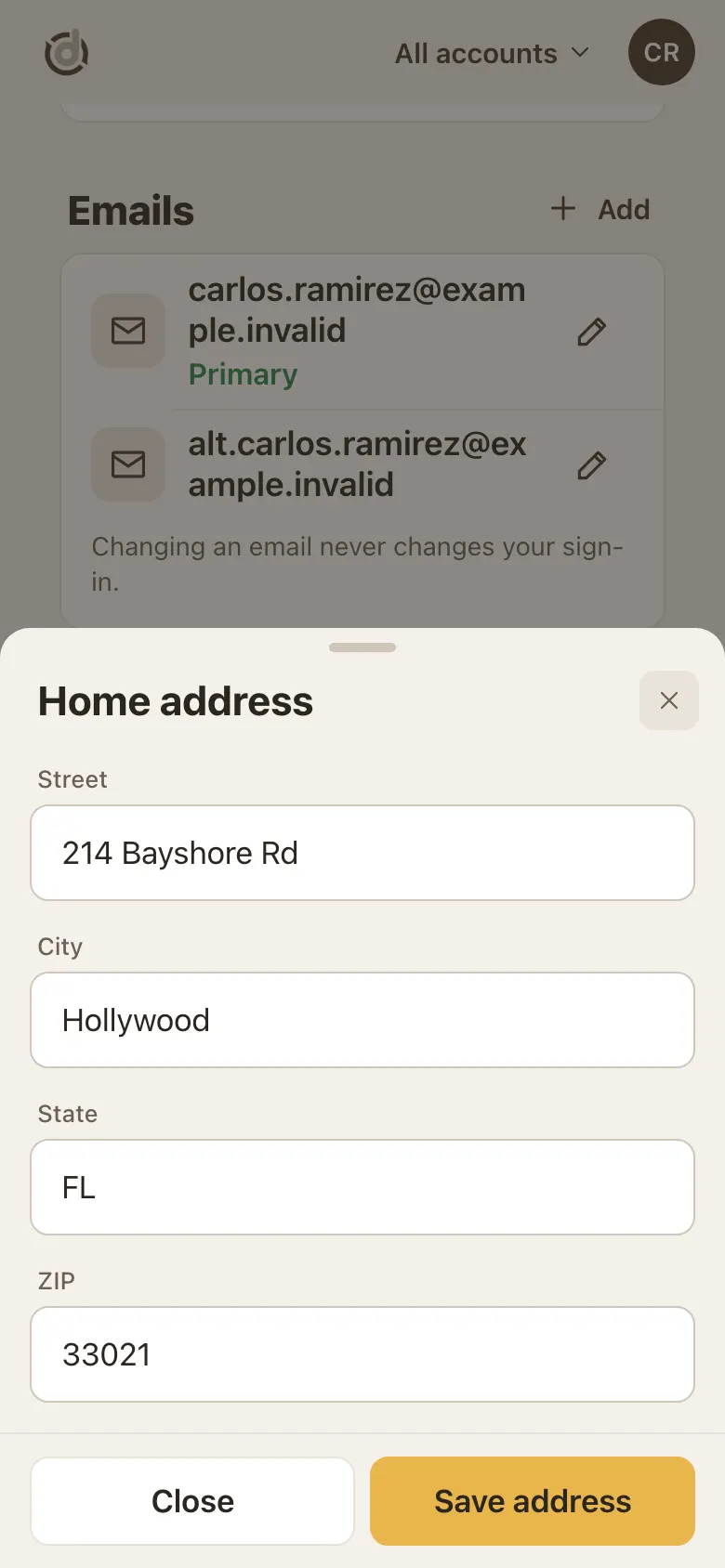
Change your home address. Step 4: Once a year: "Is this still your home address?"
Household clients see this window after signing in, once a year. It shows the home address we have.
Yes, that's right: you are done for the next 12 months. One person's Yes counts for the whole household.
Change it: opens the address form so you can fix it. The question comes back the next time you sign in.
Remind me later: hides it for 7 days on that phone or computer.
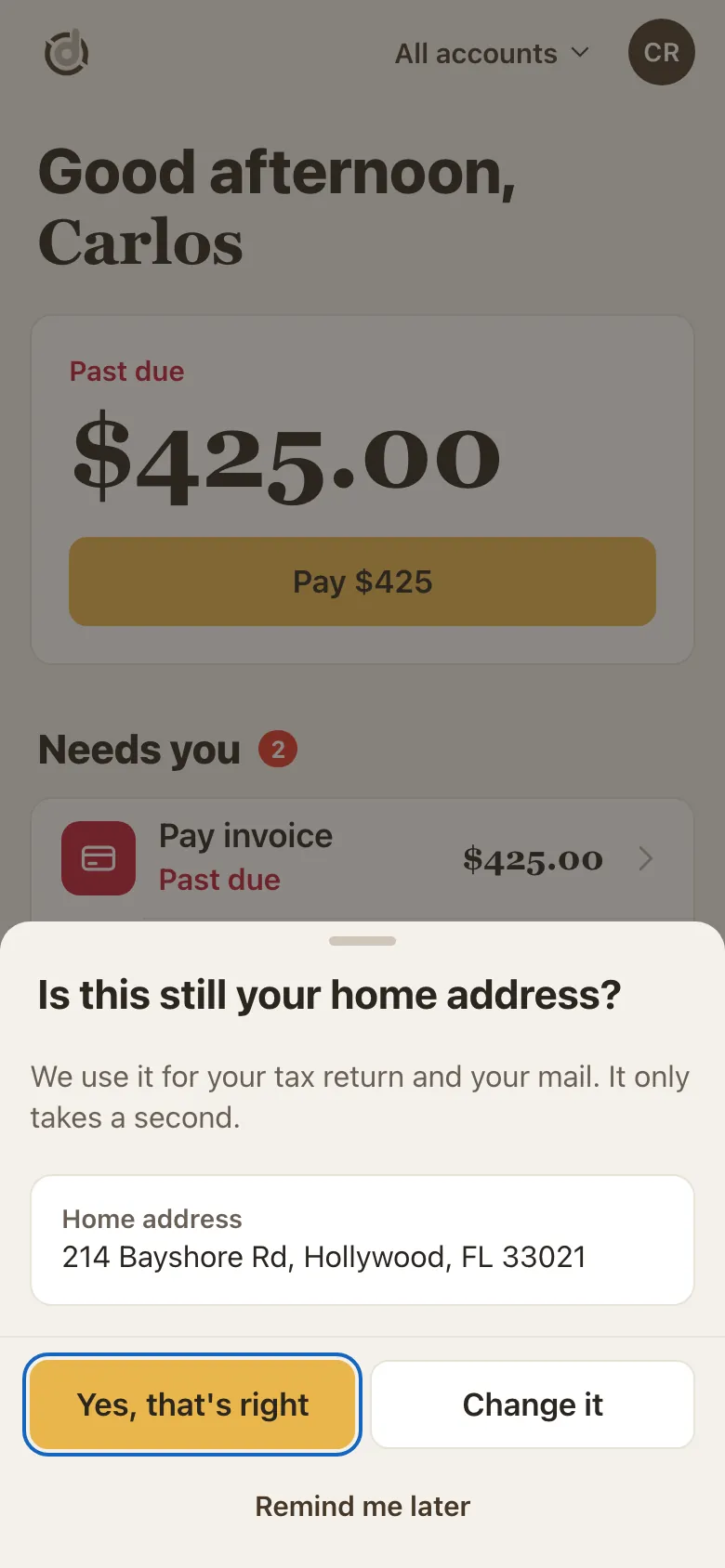
The yearly address check. Step 5: Need to remove an email or phone?
Tap Need to remove one? under Phones. Call us or send us a message, and we remove it.
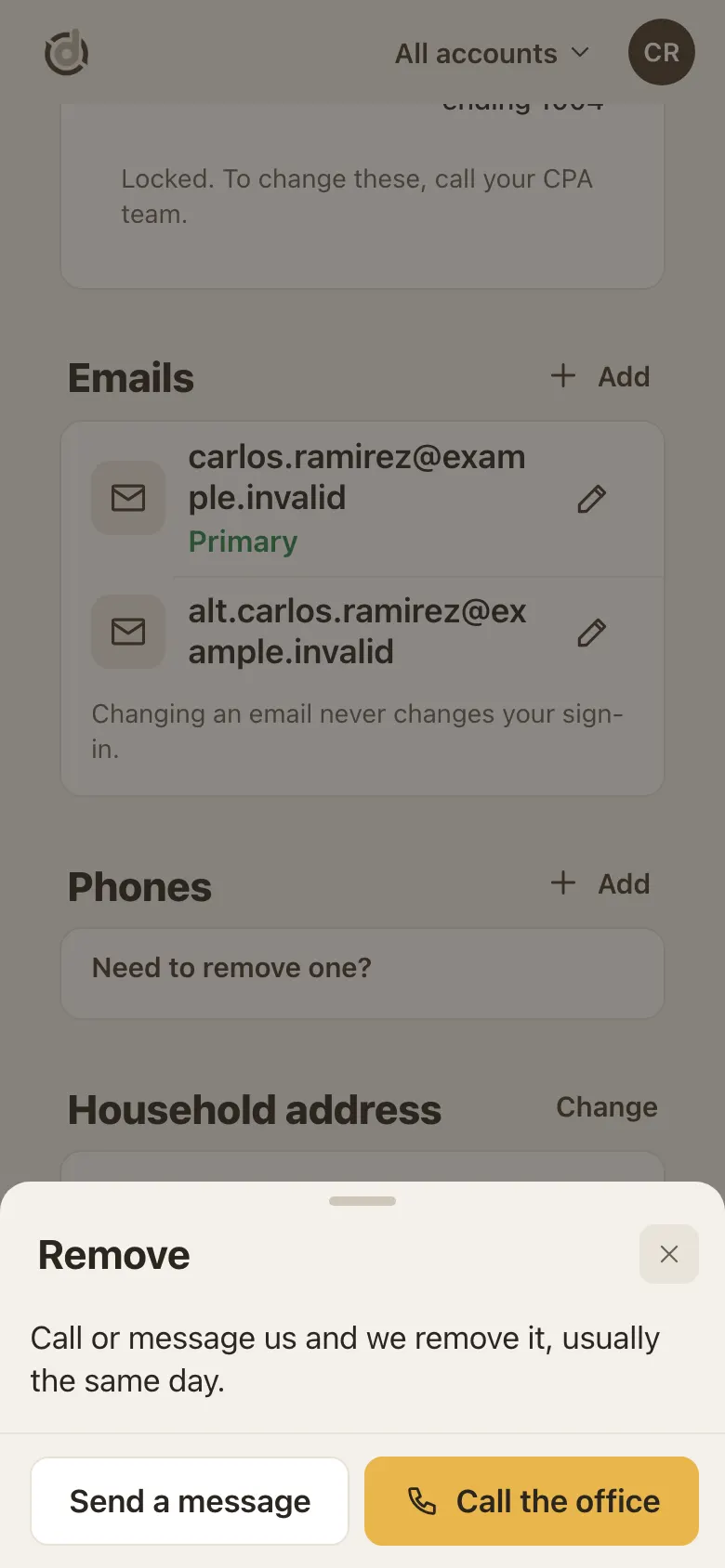
Removing an email or phone is done by our office.
Good to know
- Your address is shared with your household, so everyone in it sees the same address.
- Only our office can change your name, birthday, tax ID or sign-in email. Call us.
- Edit windows close only with Close or the ×. Tapping outside does nothing, so you don't lose what you typed.
- Updating your address in the portal doesn't notify the IRS or your state. Let your team know if you would like help with that.
- A business address is on file with the state. To change it, contact us.
Screens show a sample account with made-up details.