

Pay an invoice
Pay an invoice in a few taps with a saved card or a new one.
Step 1: Open Billing
Tap the Billing tab. Invoices opens first.
The top card shows what is due now. Below it is your list of invoices.
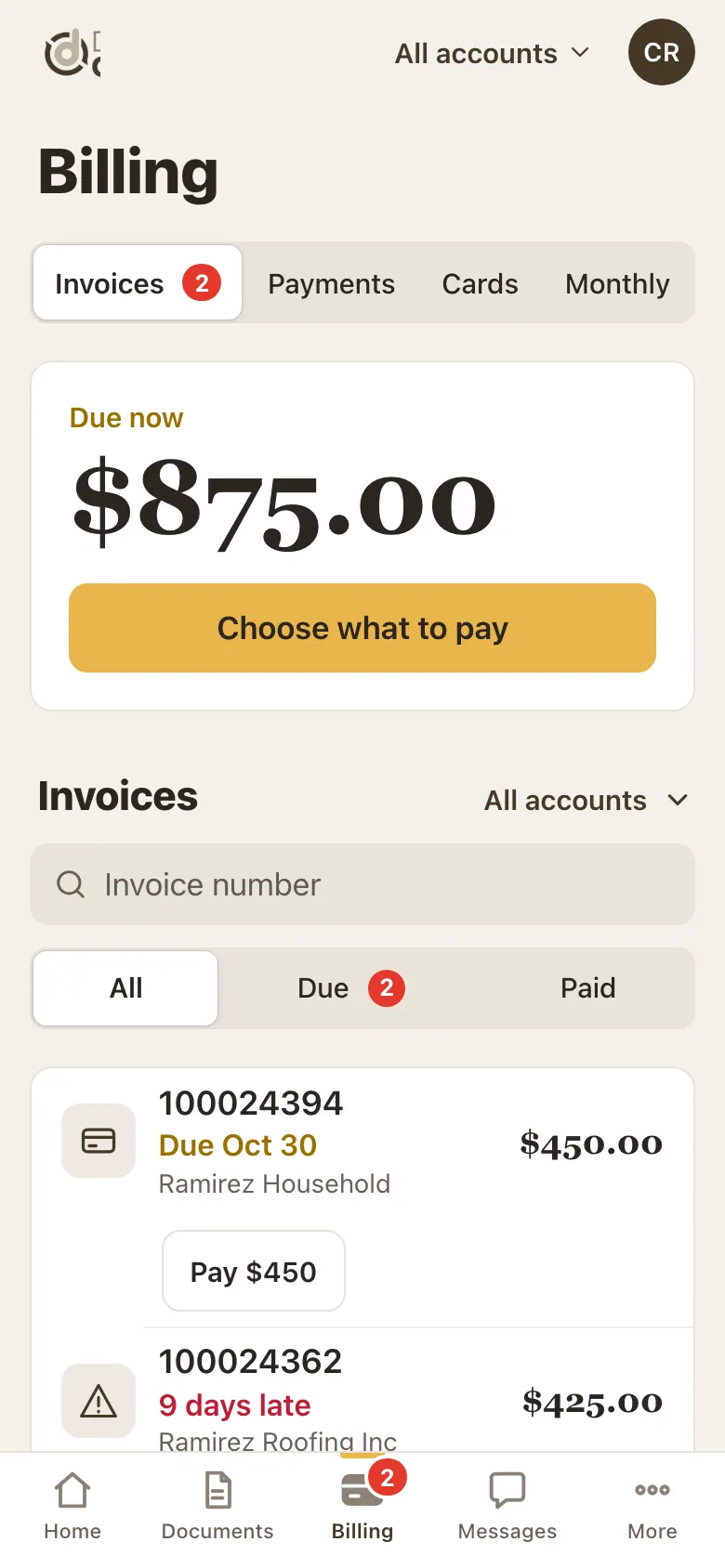
Billing: what is due now and your invoices. Step 2: Tap Pay
Tap Pay on the invoice you want to pay.
If more than one invoice is due, the gold button says Choose what to pay. Pick one invoice at a time.
Step 3: Choose how to pay
The Pay invoice window opens. Under Pay with, tap a saved card, or Use a new card.
Tap the gold Pay button. It shows the amount.
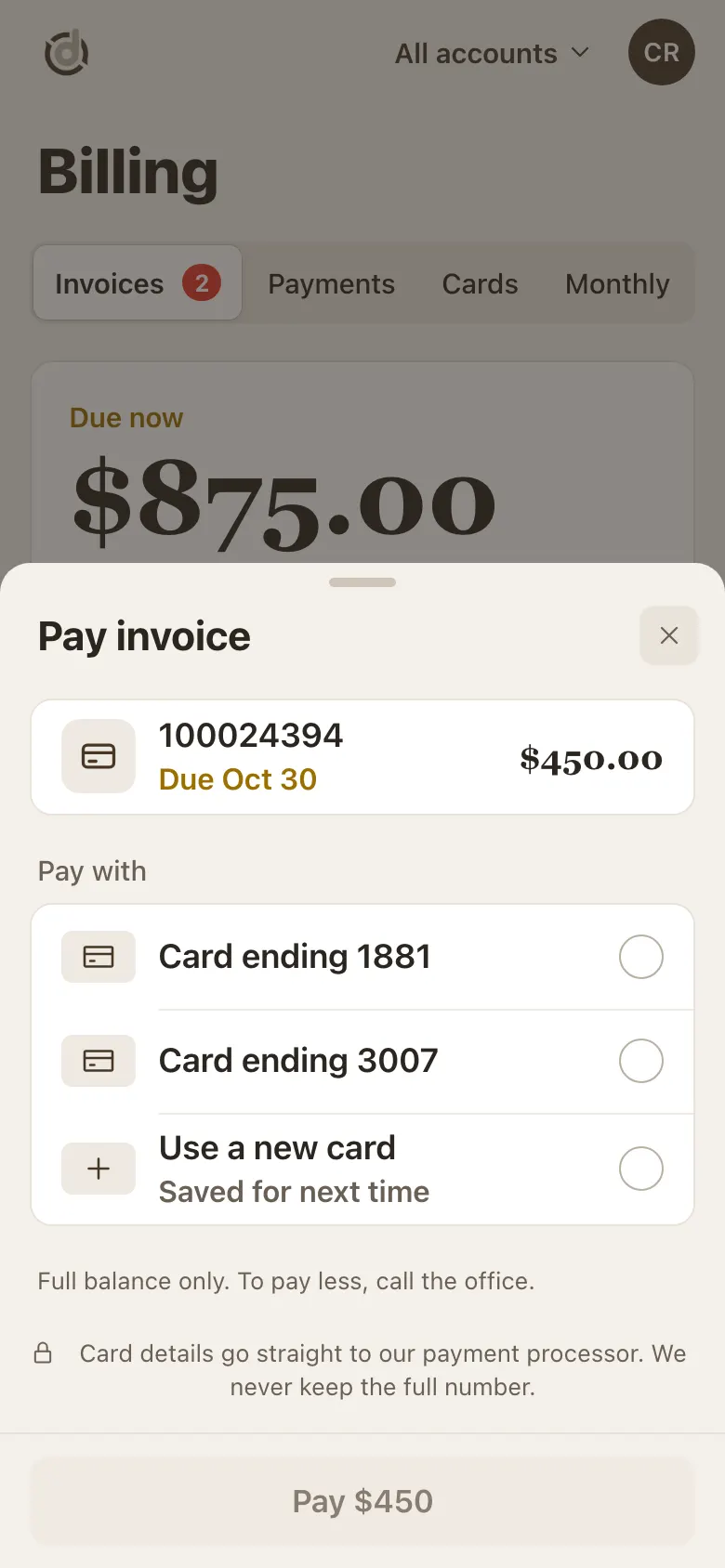
Pick a card, then tap Pay. Step 4: Wait for the confirmation
You will see Processing your payment. Sometimes it says Confirming your payment. This can take up to a minute, so keep the screen open.
When it is done you see Paid. Your receipt comes by email.
Step 5: See an invoice's details
Tap the invoice number (not the button) to see its date, due date, what was paid so far and the balance.
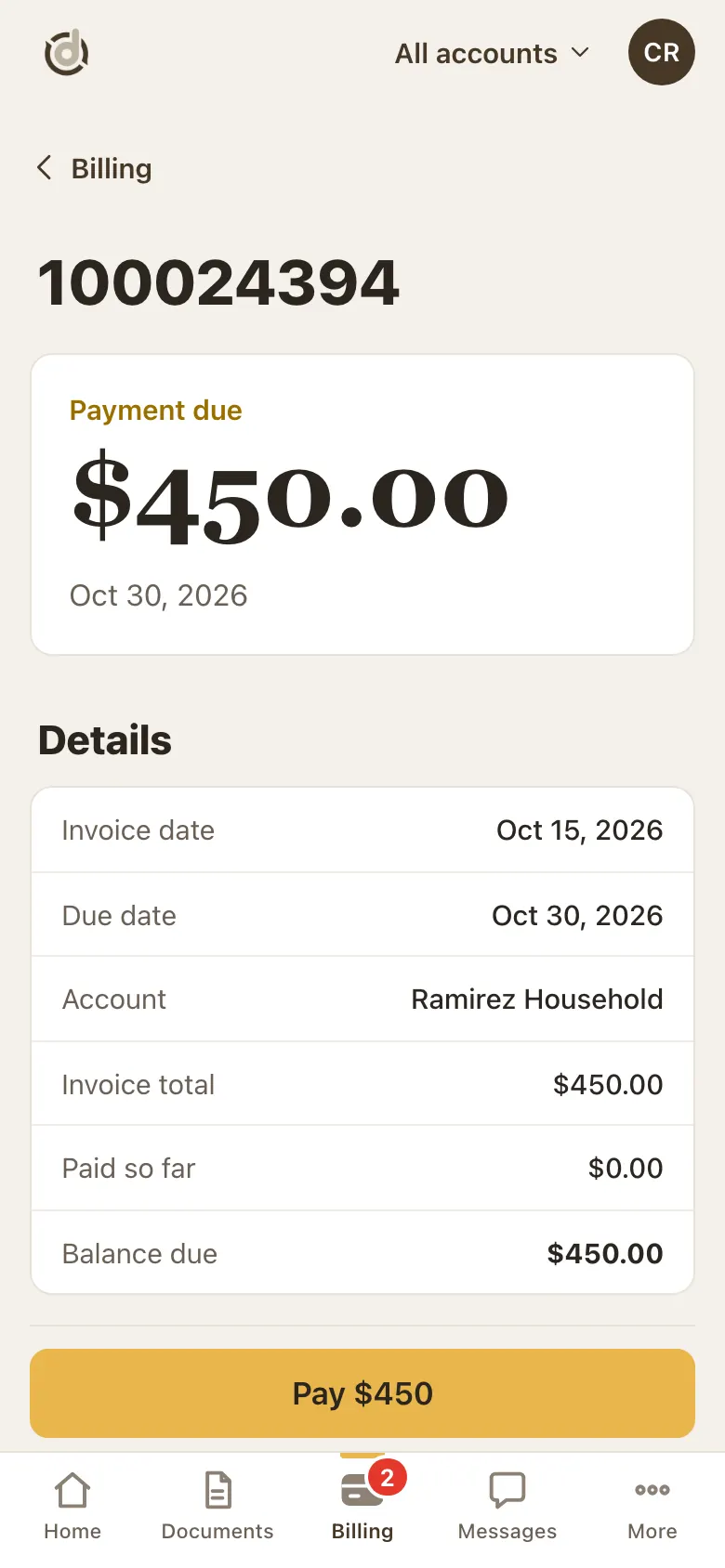
An invoice page.
Good to know
- The portal pays the full balance. To pay part of an invoice, call the office.
- You can pay an invoice on or after its date. Before then it says, for example, "Pay from Nov 1".
- "Charged automatically" means it will be charged to your card on file. Nothing to do.
- If you see "Payment received", we have it. Please don't pay again.
- Declined? Pick another card and try again. A declined payment is not charged.
- Card details go straight to our payment processor. We never keep the full number.
Screens show a sample account with made-up details.