

Find your way around
Home, the tabs, switching between your accounts, and getting back.
Step 1: Home: what needs you and what we are working on
Needs you lists each thing waiting on you, with a colored word and an amount when money is involved. Tap a row to go straight to it.
In progress shows your tax returns and services in plain words, like "We are on it".
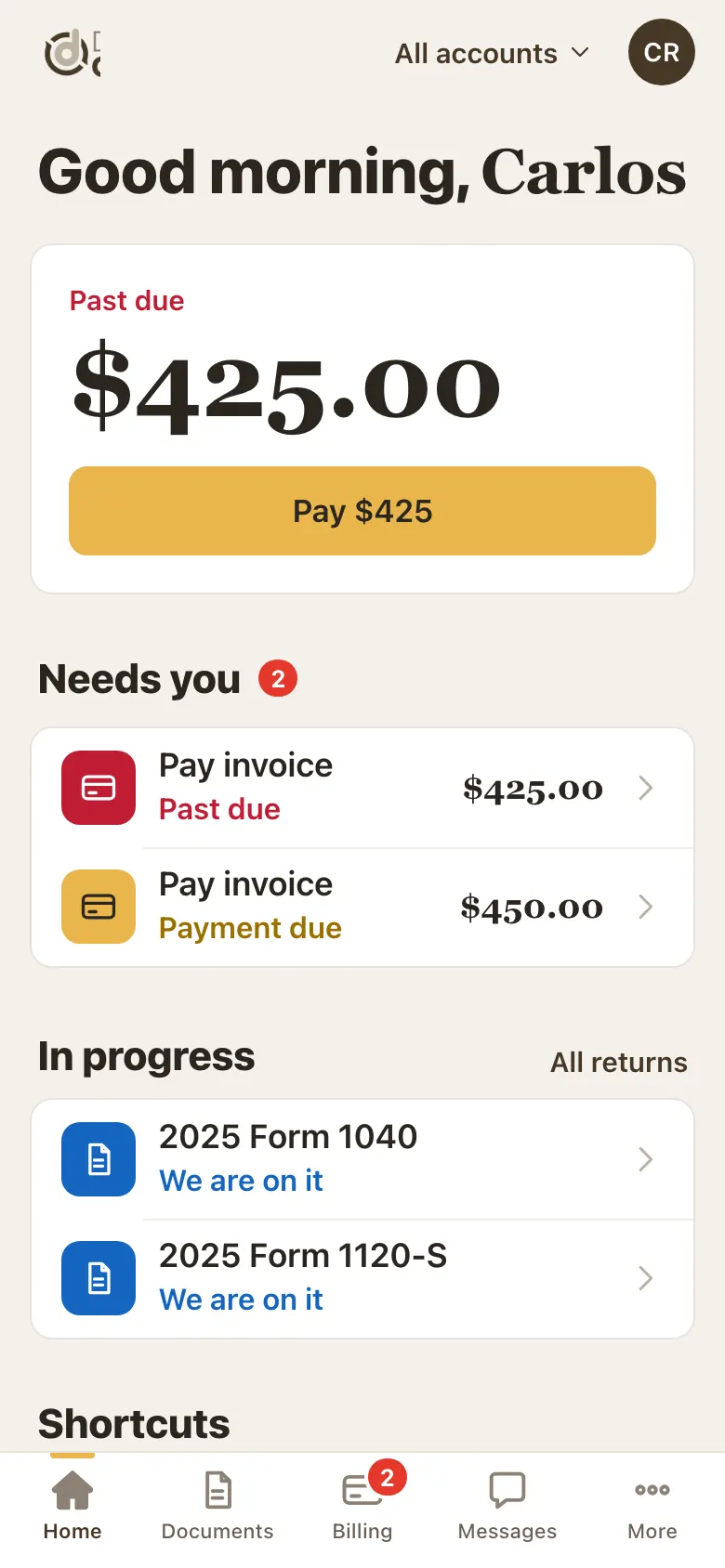
Home: Needs you and In progress. Step 2: Shortcuts and your team
Further down Home are shortcuts to common jobs: Tax docs, Pay, Returns, Services, Filings, Accounts and more.
Your team shows who works on your account, with Email and Call buttons.
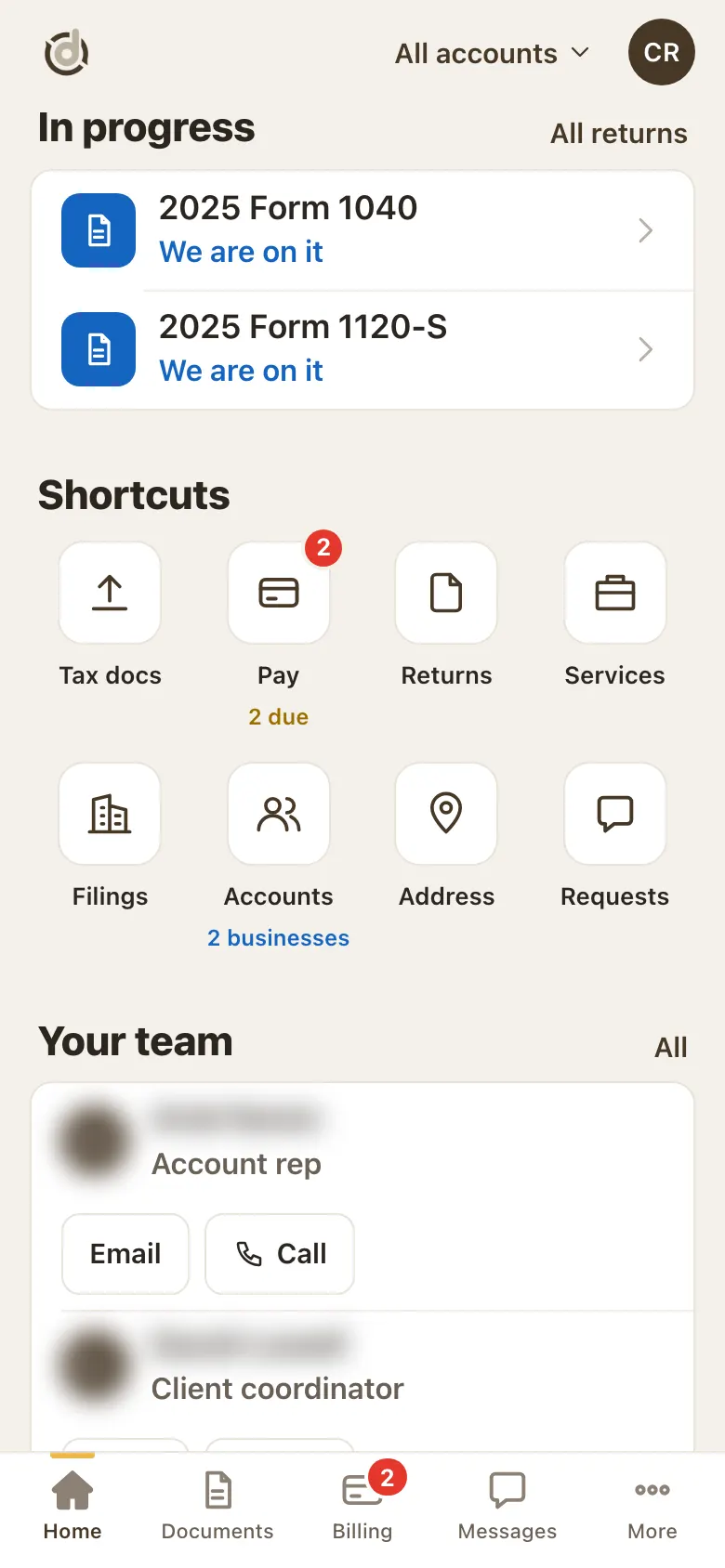
Shortcuts and Your team on Home. (Names hidden in this sample.) Step 3: Switch between your household and businesses
Tap the account name at the top (it says All accounts at first).
Choose All accounts, your household, or one business. The red number shows how many things need you there.
Close the list with the ×.
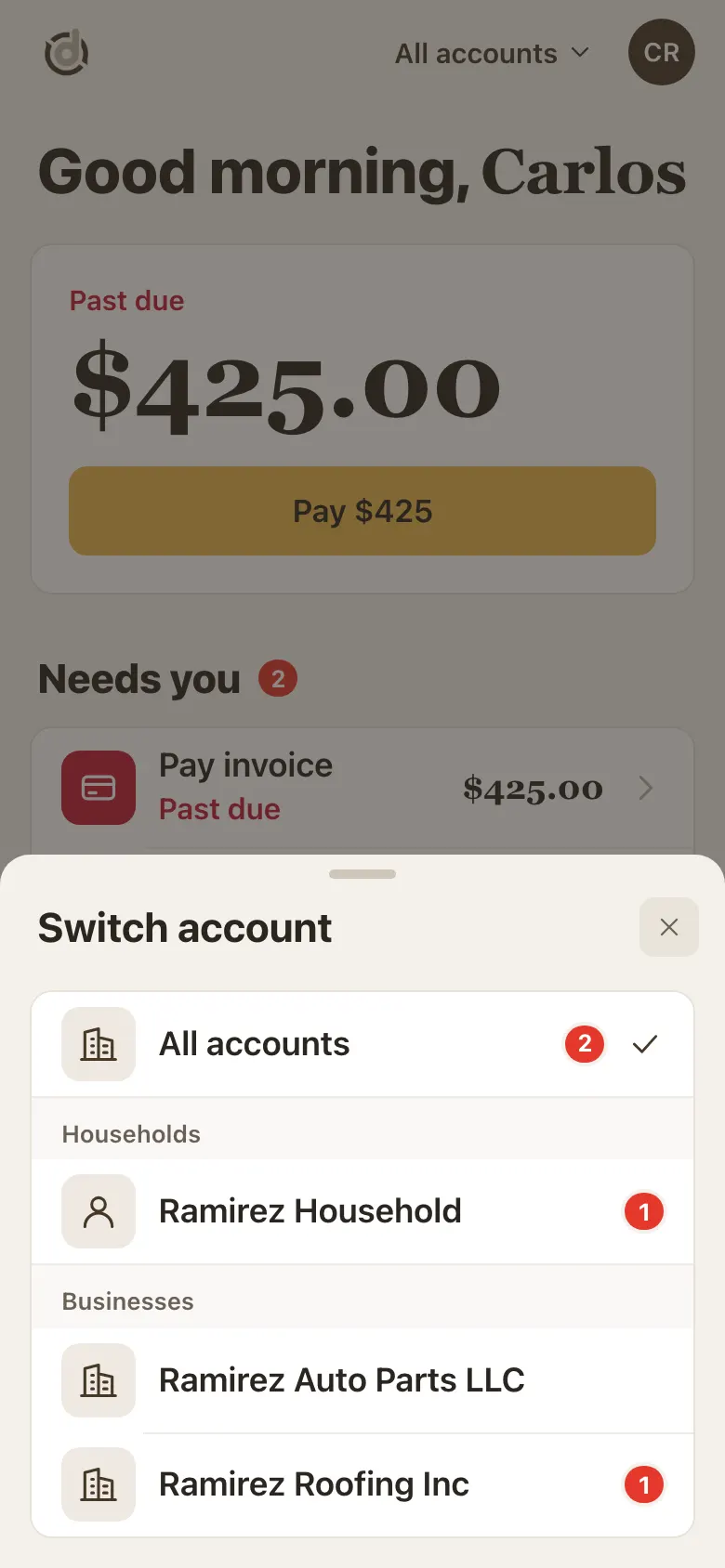
Switch account: pick All accounts, your household or a business. Step 4: The top bar on a phone
On a phone the top bar shows our round logo on the left, the account you are viewing in the middle, and your initials on the right.
A long business name shows its beginning and ends with "…". Tap it to see the full name in the account list.

A long business name ends with "…" in the top bar. Step 5: See all your accounts
Tap the Accounts shortcut on Home to see every account in one list.
Tap one to open its page: people, tax returns, invoices, agreements and more.
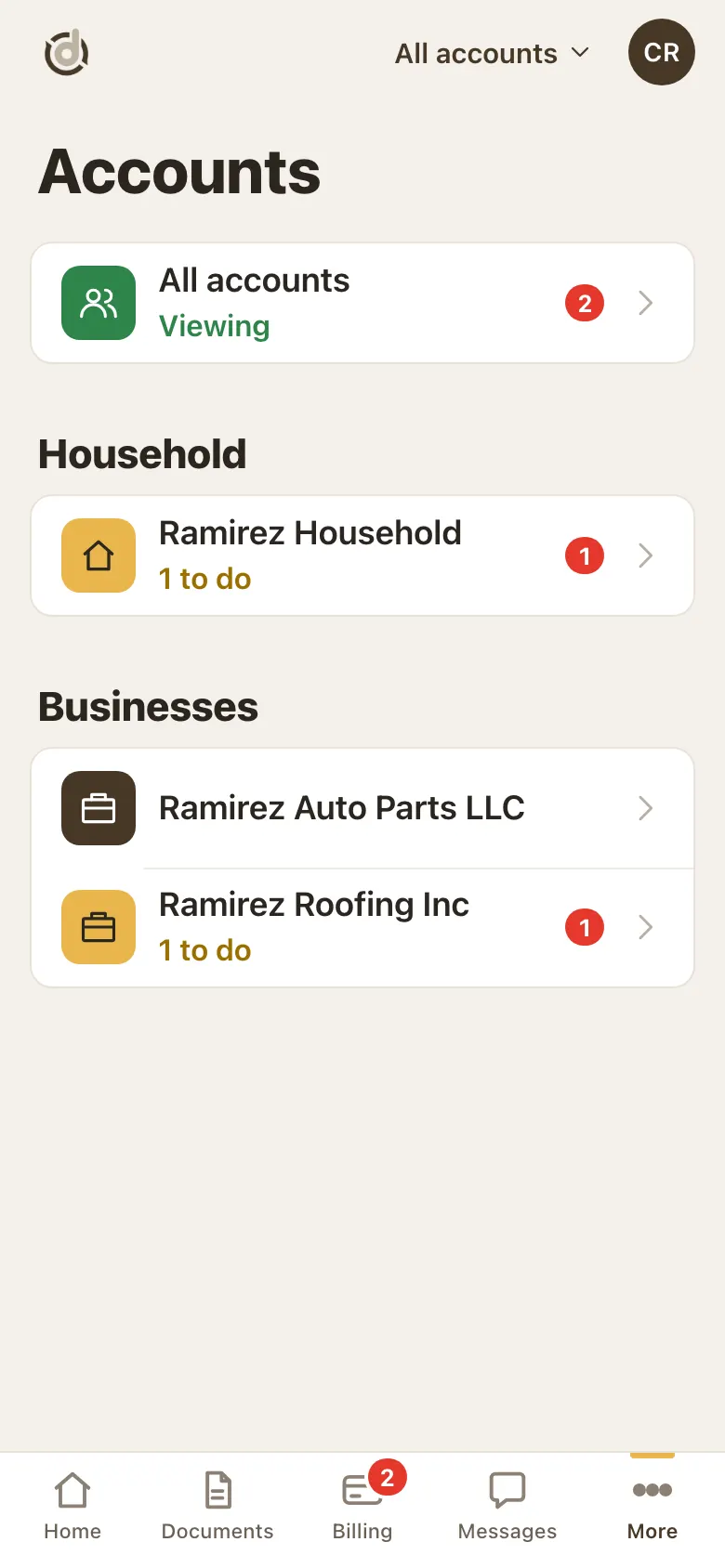
Accounts: your household and businesses. Step 6: On a computer
The tabs run down the left side. The account you are viewing is at the top of that menu.
Your name, the language links and Log out are at the bottom of the menu.
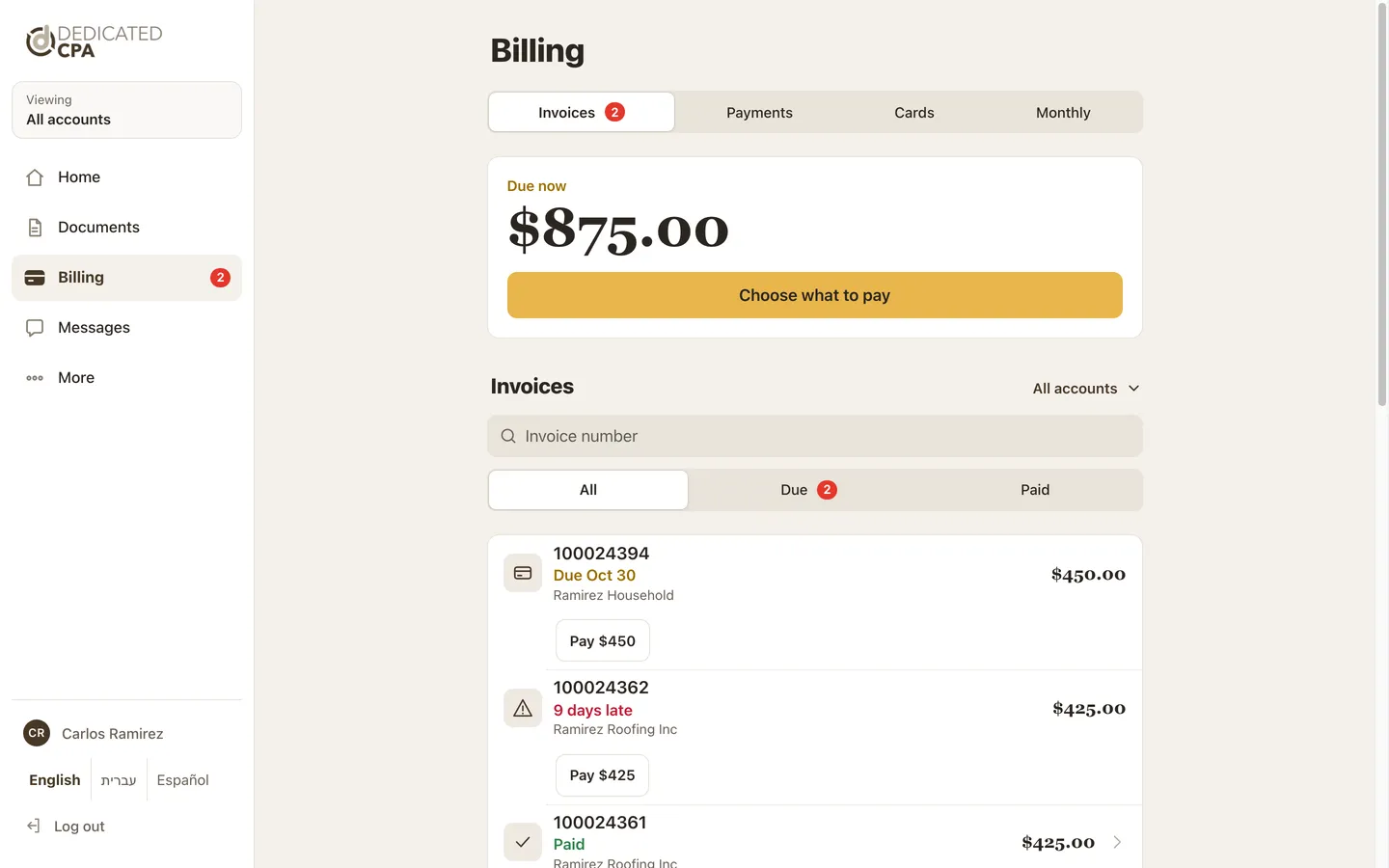
On a computer: the menu on the left, the page on the right. Step 7: Getting back
Pages you open from a list have a Back link under the top bar.
You can also tap any tab to jump straight there.
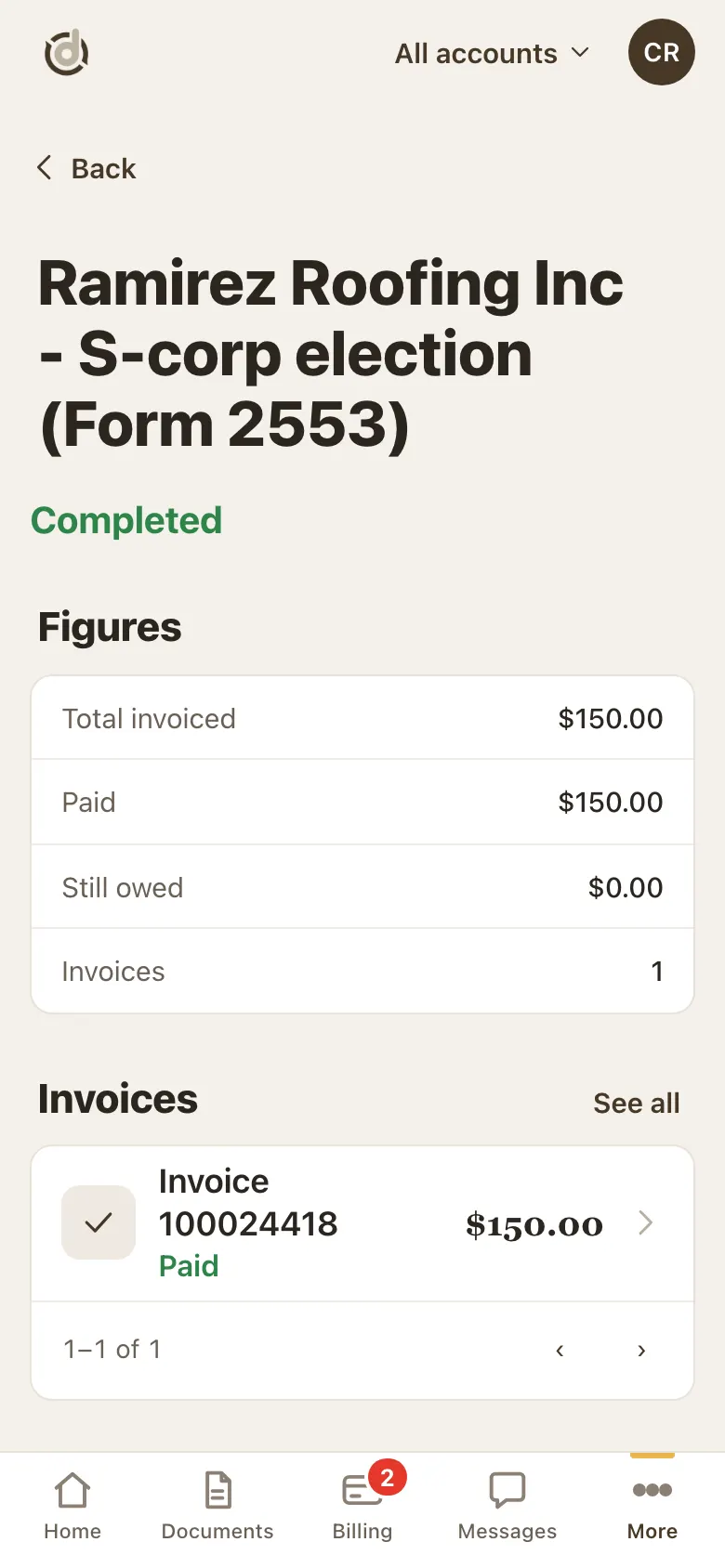
The Back link sits under the top bar.
Good to know
- Documents, Billing and the lists show only the account you picked. All accounts shows everything.
- If you have only one account, there is no account switcher. You see that account directly.
- Your initials in the top corner stand for you. Your Profile is under More.
Screens show a sample account with made-up details.