

Add or remove a card
Save a card for all your accounts, or remove one you no longer use.
Step 1: Open Billing, then Cards
You see each saved card, like "Card ending 1881".
If a card pays a monthly service, it says Main or Backup and the service.
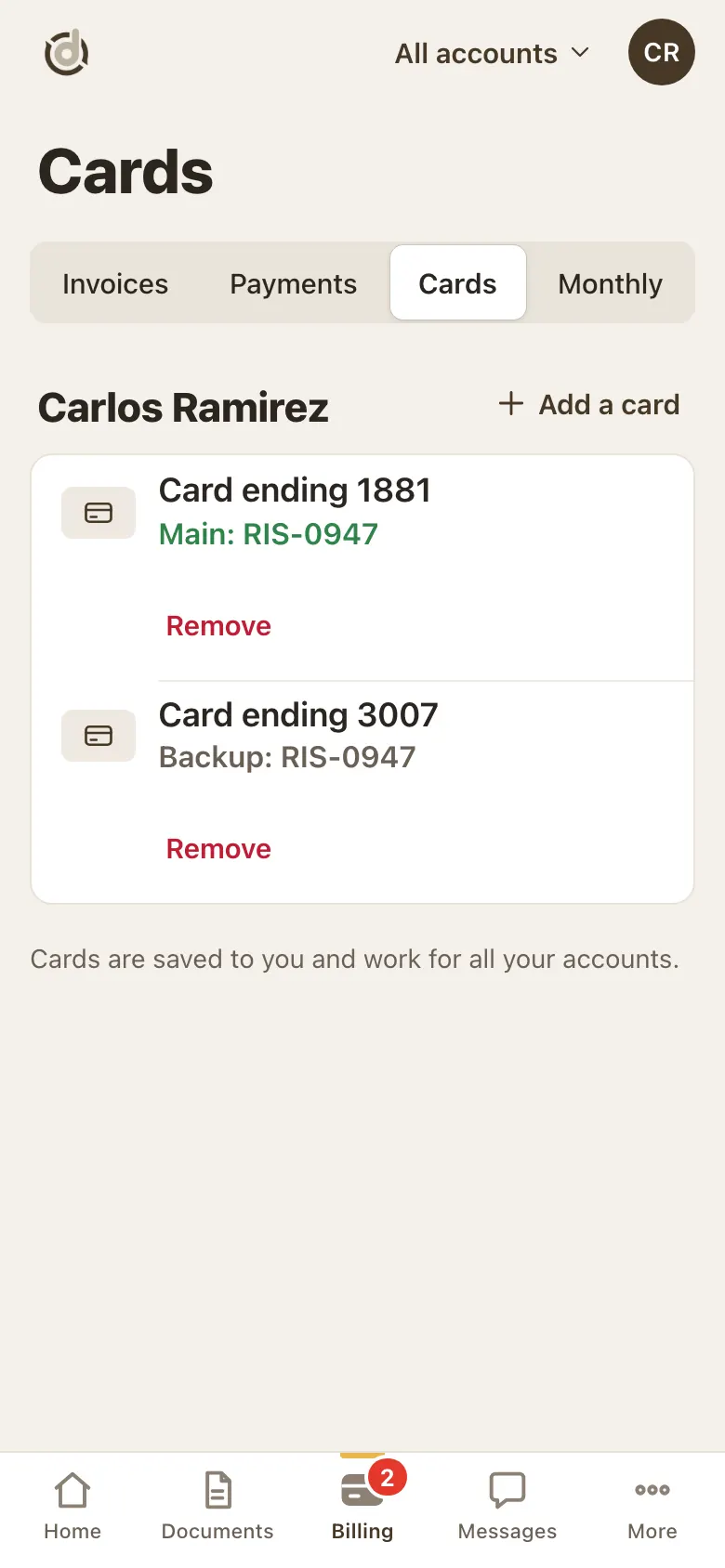
Cards: your saved cards and what they pay for. Step 2: Add a card
Tap Add a card. A window opens straight on our payment processor's secure card form.
Type the Card number, the expiry date (MM / YY) and the CVV (the 3 or 4 digits on the card).
Tap the gold Save card button.
Step 3: Check that it was added
You see Card added, and the card shows in your list.
If it says we cannot confirm the card was added, look at your Cards list before trying again, so you don't add it twice.
Step 4: If the card is declined
The window says the card couldn't be added and shows the reason from the card processor.
Nothing was saved. Check the numbers and tap Try again, or use another card.
Step 5: Remove a card
Tap Remove under the card. The portal asks first.
Tap Remove to confirm, or Keep it to leave it.
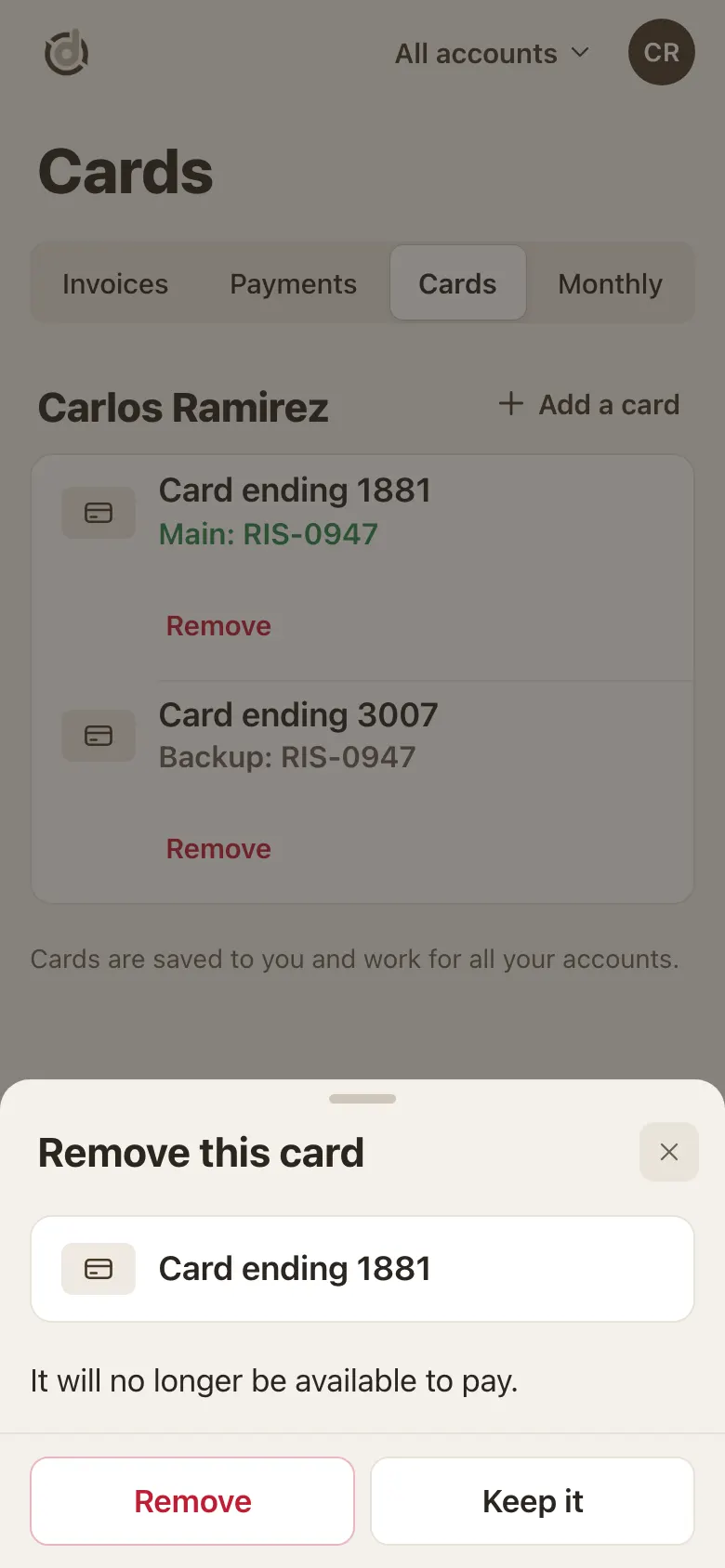
Remove asks you first. Step 6: Card in use for a monthly service?
A card that is the Main or Backup card of an active monthly service can't be removed yet.
First choose another card for that service (see "Choose the card for a monthly service"). Then remove this one.
Good to know
- The portal adds cards only. To pay by bank account, call us.
- Cards are saved to you, not to one business. A card you add works for all your accounts.
- Adding a card doesn't change which card a monthly service uses. You choose that on the service.
- Card details go straight to our payment processor. We never see or keep the full number.
- Got a new card from your bank? Add the new card here, or call us.
Screens show a sample account with made-up details.