
Getting started
Put the portal on your phone
Add the portal to your Home Screen so it opens like an app.
Step 1: Open the portal in your phone's browser
On an iPhone, open portal.dedicatedcpa.com in Safari. On Android, open it in Chrome.
A "Get the app" window slides up after a moment.
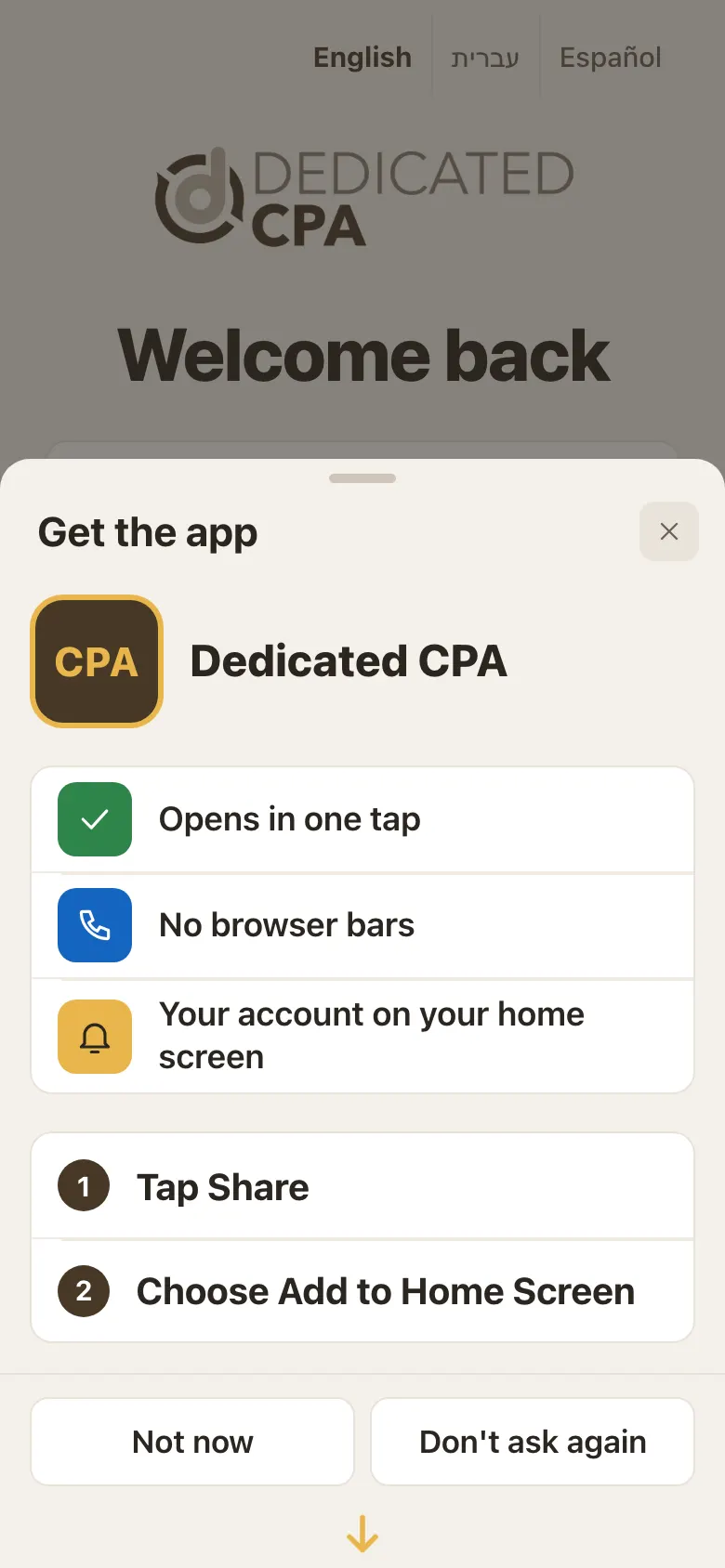
The Get the app window on an iPhone. Step 2: iPhone: Share, then Add to Home Screen
Tap the Share button in Safari's bottom bar (the square with an arrow).
Choose Add to Home Screen, then tap Add.
Step 3: Android: Install
Tap Install the app and confirm.
No Install button? Tap Chrome's menu (three dots), then Install app.
Step 4: Not now, or Don't ask again
Not now hides the window for two weeks. Don't ask again stops it on that phone.
Tapping outside the window does not close it. Use Not now or the ×.
Step 5: Changed your mind later? Use More
Open More and tap Add to Home Screen. The same steps open any time.
You won't see this row once the portal is already on your Home Screen.
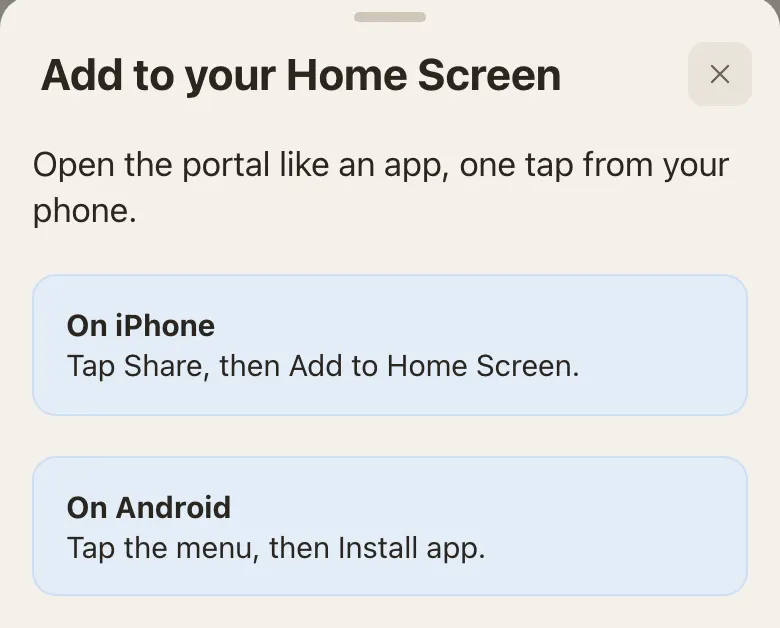
More, then Add to Home Screen: steps for iPhone and Android.
Good to know
- Add it from the short address, portal.dedicatedcpa.com.
- On an iPhone it must be Safari. Chrome on iPhone cannot add the portal to the Home Screen.
- If you opened the link inside Gmail or Facebook, the window asks you to open Safari or Chrome first, with a Copy link button.
Screens show a sample account with made-up details.