

Documents and tax returns
Agreements and signed copies
Find your agreements, download the signed copy and see their invoices.
Step 1: Open More, then Agreements
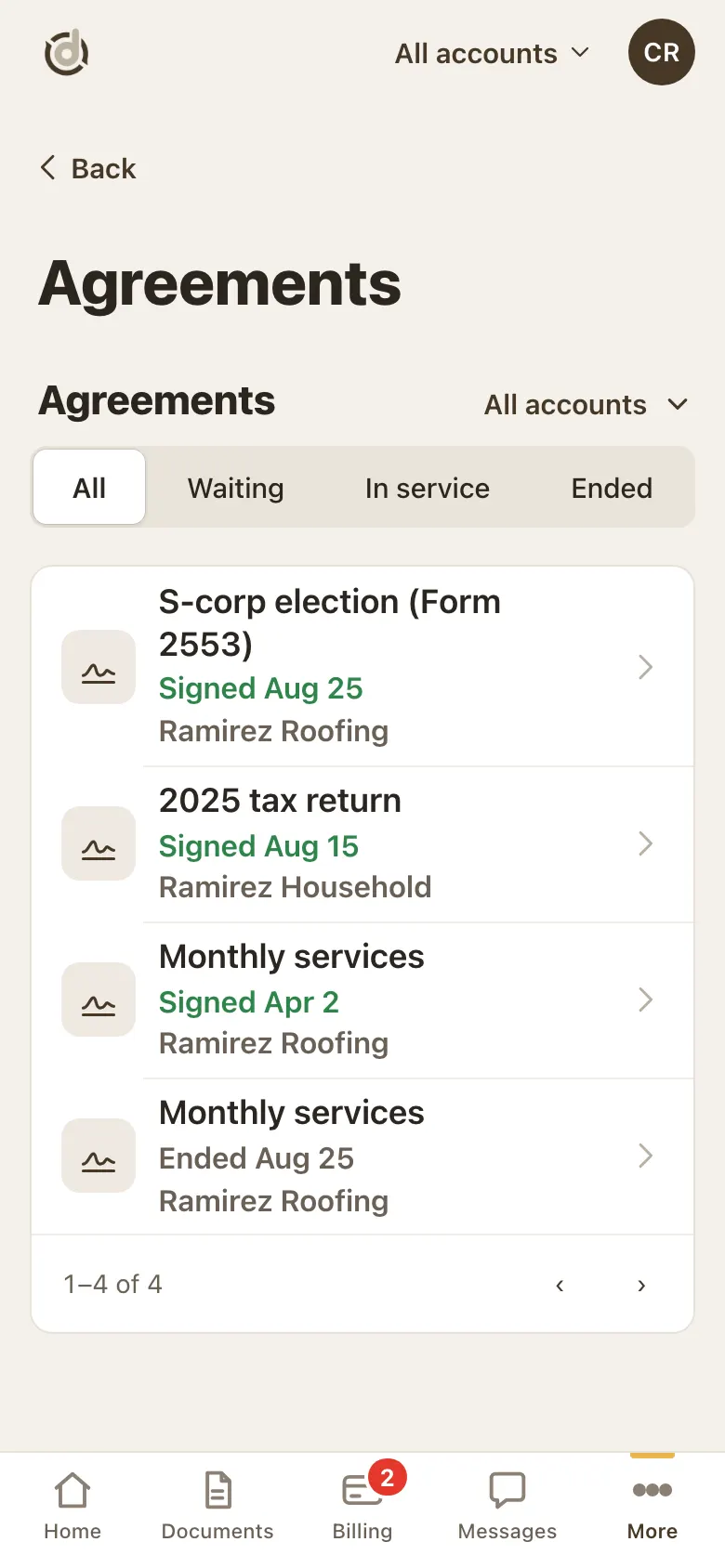
Each agreement shows its title, a status word with the date, and the account.
Use the filters at the top to find one: All, Waiting, In service, Ended.
Your agreements. Step 2: Open an agreement
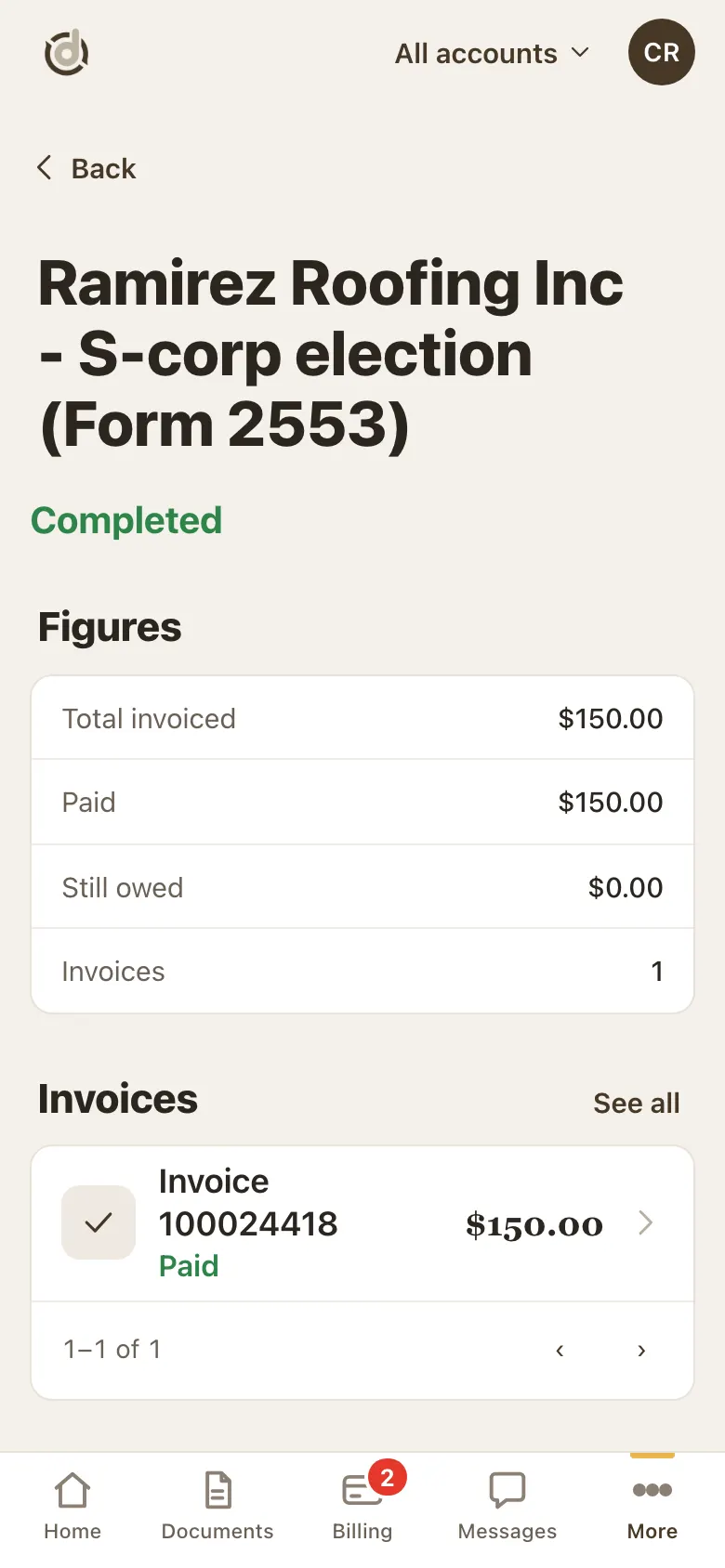
Figures shows the total invoiced, what was paid and what is still owed.
Invoices lists the invoices for this agreement.
An agreement: figures and invoices. Step 3: Download the signed copy
Signed documents show with the date they were signed and a Download button.
If it says Preparing your copy, wait a moment. If it takes long, tap Retry, or Tell us.
Step 4: Pay an invoice from here
An invoice that is due shows a Pay button. It opens the same pay window as Billing.
An invoice dated in the future says when you can pay it, for example "Pay from Nov 1".
Good to know
- Long titles are shortened on a phone. The full title is on the agreement's page.
Screens show a sample account with made-up details.